
To list a rental with the Assistant, give it the property's address and it creates a listing draft for you. Then select Finish listing to add the details and photos, and your listing is submitted for review.
How to list a rental with the Assistant
- Select Assistant in your dashboard menu, then select List a rental. You can also type a request like "I want to create a listing."
- Confirm the property's address. If you've already set up a property with the Assistant, it uses that one. If your listing is for a different address, tell the Assistant the correct one.
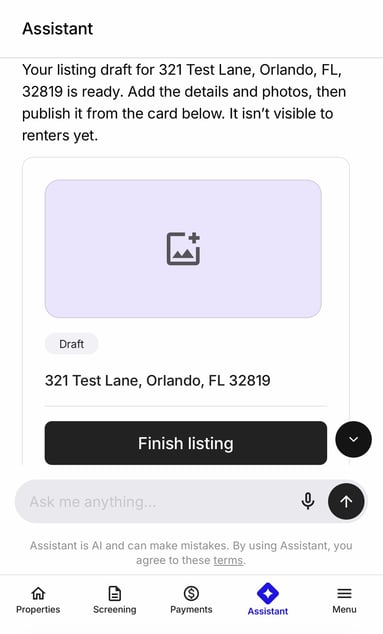
- Review your listing draft. The card shows the address and a Draft label. Your listing isn't visible to renters yet.
- Select Finish listing. You're guided through the rest of the listing, like the availability date, property details, and photos.
- Complete the details. Your listing is automatically submitted for review and is published once it's approved.
To make changes later, see Edit or reactivate your listing.