
To screen a tenant with the Assistant, give it the property's address and it creates your application link. Then send the link to applicants by email or text, or share it yourself.
How to screen a tenant with the Assistant
- Select Assistant in your dashboard menu, then select Screen a tenant. You can also type a request like "I want to screen a tenant."
- Enter the address in the What's the property address? box. If the property isn't in your account yet, the Assistant adds it to your properties.
- If this is your first screening, select Update mailing address and save your own mailing address. It's a one-time step required for screening reports. Then tell the Assistant you're done, and it continues.
- Review your application link. The card shows the link, the screening package, its price, and what's included. To change the package, select Edit application package. See how much screening costs.
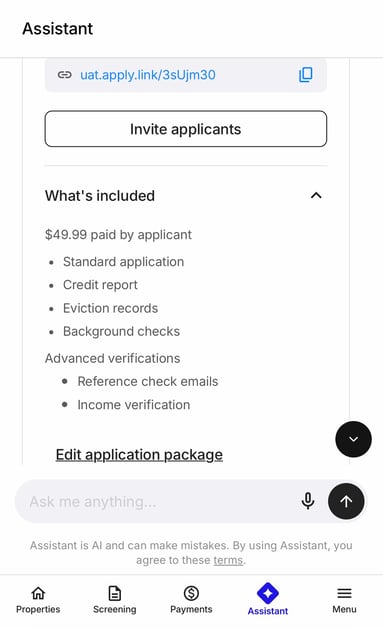
- Select Invite applicants, add each applicant's email or phone number, then select Send. Each applicant gets the application link. To share the link yourself instead, select the copy icon.
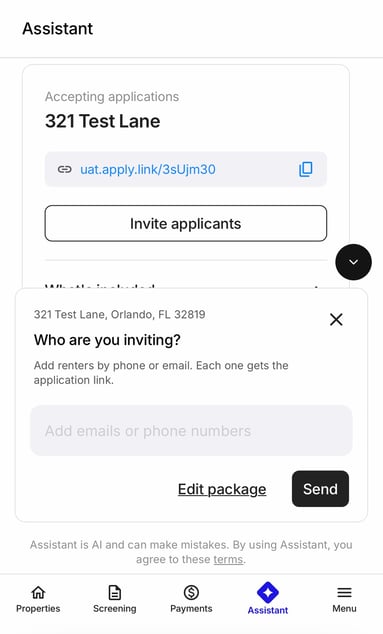
Anyone with the link can use it to apply, so share it only with the applicants you want to screen.