Skip to content
  • There are no suggestions because the search field is empty.

How to create a listing

Build a professional rental listing in minutes and get it in front of renters on the biggest sites all for free.

Creating a listing in RentSpree is one of the fastest ways to start attracting qualified renters. RentSpree uses AI to help you put together a polished listing from your photos, then pushes it out to top rental sites automatically. Here's how to do it.

First time creating a listing? RentSpree will ask you to verify your identity before you can publish. This is a one-time process handled securely through Plaid.  You'll need your full name and the last four digits of your Social Security number to complete the process. It only happens once at the account level, so you won't need to do it again for future listings.

Step 1: Open the Listing tab

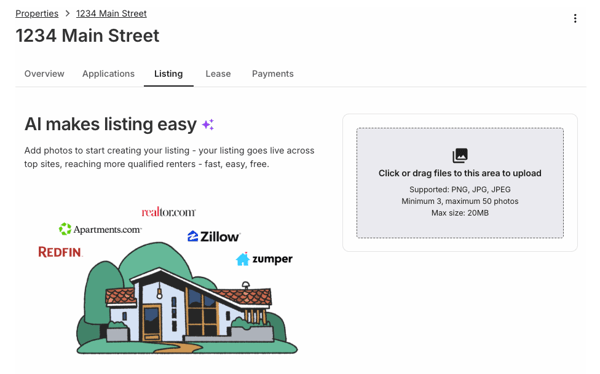
From your property dashboard, click the Listing tab at the top of the page. If you haven't created a listing yet, you'll see the option to get started right there.

Screenshot 2026-04-16 at 4.28.28 PM

Step 2: Upload your photos

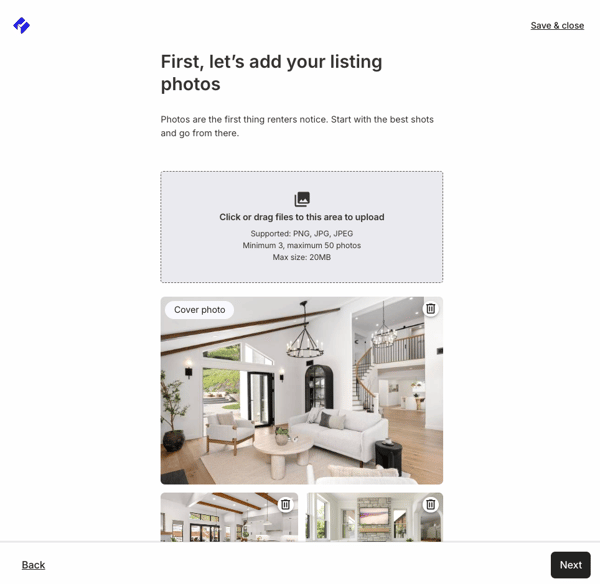
Photos are how you start — RentSpree's AI uses them to help build your listing details. Click the upload area or drag your photos directly onto it to get started.

A few things to keep in mind:

  • Supported formats: PNG, JPG, and JPEG
  • Minimum: 3 photos required to publish
  • Maximum: 50 photos
  • Max file size: 20MB per photo

More photos, more interest. Renters want to picture themselves in your space before they ever set foot in it. Aim for 10–15 photos at minimum — every room, the exterior, parking, outdoor spaces, and any features worth highlighting like updated appliances or in-unit laundry. Bright, clear photos taken in natural light make the biggest difference. Avoid dark corners, clutter in the background, or blurry shots.

Screenshot 2026-04-16 at 4.30.05 PM

Step 3: Add a video tour

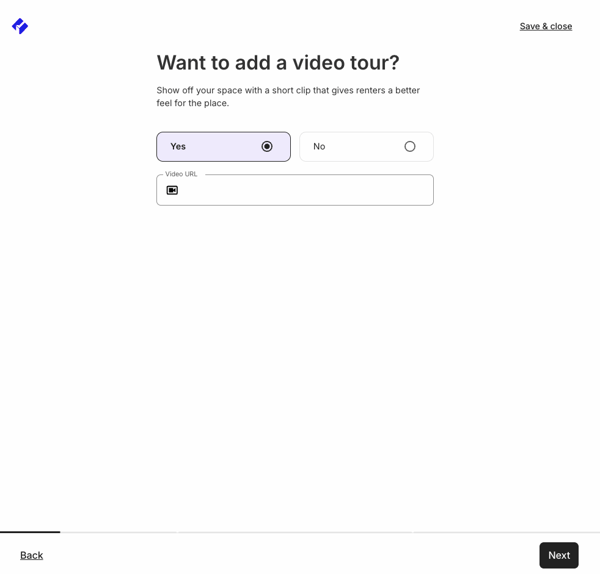
Wow your potential new tenant with a video tour of your property!  You may add a link to a YouTube or Vimeo tour to be shown with your listing.

Screenshot 2026-04-16 at 4.31.14 PM

Step 4: Fill in your listing details

Review and complete the remaining details for your listing. This typically includes:

  • Rent amount — What you're charging per month.
  • Available date — When the property is ready for a new tenant.
  • Pet policy — Whether you allow pets, and any restrictions or deposits.

Step 5: Review your AI-generated listing

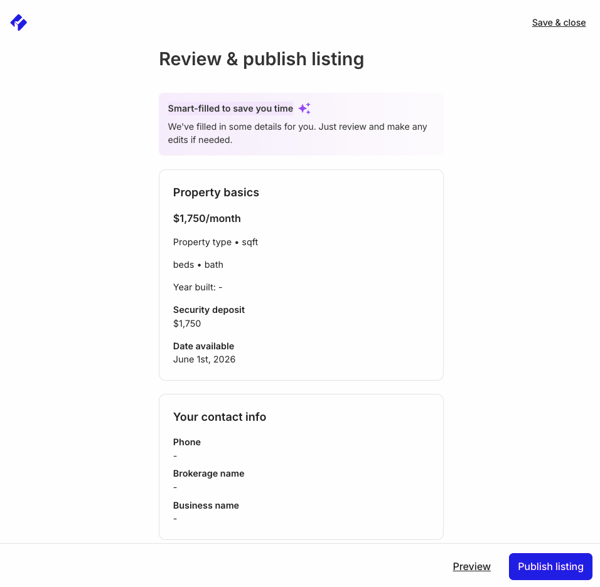
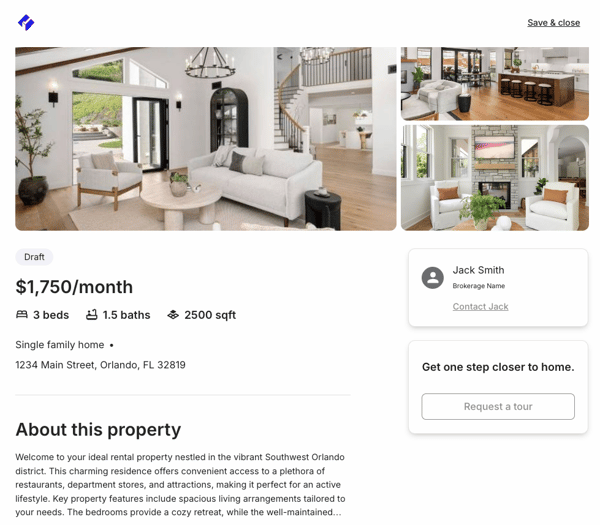
Once your photos are uploaded and initial details are added, RentSpree's AI gets to work building your listing. It will generate a description and fill in key details based on what it sees. Take a moment to review everything — the AI does a great job, but you know your property best.

Screenshot 2026-04-16 at 4.35.51 PM

You may click into any specific section to manually add or edit details.

Be specific with your rent and terms. Renters filter by price and availability; vague listings get skipped. If you're flexible on lease length or open to negotiating on pets, note it in your description. Being upfront saves everyone time and tends to attract more serious applicants.

Step 5: Publish your listing

Once everything looks good, publish your listing. RentSpree will syndicate it to Zillow, Redfin, Apartments.com, Zumper, and realtor.com automatically with no extra steps needed on your end.

Screenshot 2026-04-16 at 4.42.19 PM

How long does it take to go live? Your listing should appear on partner sites within 8 hours of publishing. In the meantime, RentSpree gives you a direct link to your listing page that you can share with anyone right away by email, text, or social media.

Every listing goes through a review. After you hit publish, RentSpree's Trust & Safety team reviews your listing within 24–48 hours to confirm your relationship to the property. This is normal and happens for every new listing and any listing that's been edited. Your listing won't go live until the review is complete.

What happens next

Once your listing is live, interested renters can view it and submit an application directly. You'll be notified when applications come in, and you can review them from the Applications tab.