
Messages lets you talk with applicants and contacts without leaving RentSpree, with every conversation tied to the right property. Open it anytime from the chat bubble icon in the top right corner of your dashboard.
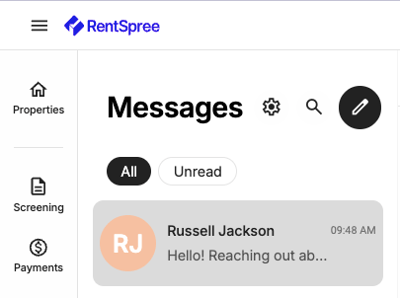
Start a new conversation
Select the pencil icon at the top of the Messages panel.
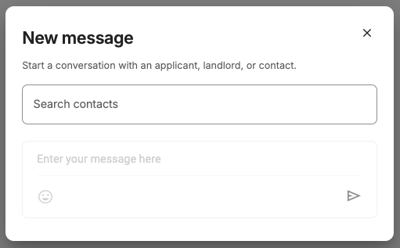
Type a name or email and select the person from the results. Their role, such as Applicant, appears next to their name.
If they aren’t in your contacts yet, select Add new contact and enter their name, email, and (optionally) phone number and role.
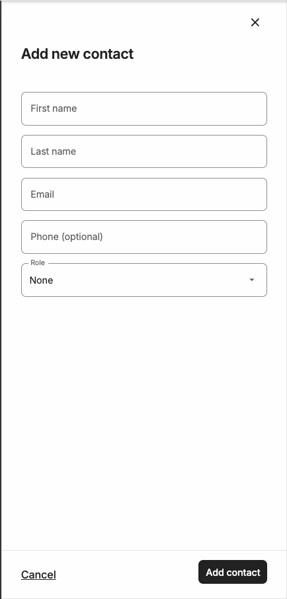
If the person doesn’t have a RentSpree account, they receive an email invitation to create one and view your message.
Connect a property to a conversation
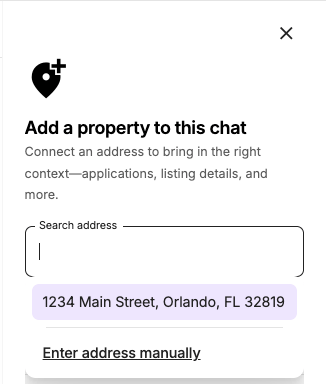
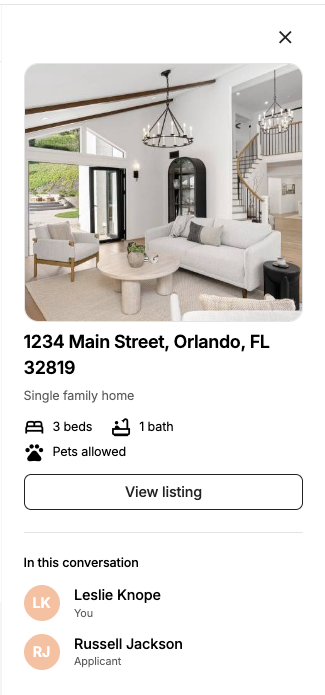
Connecting a property pulls your listing, application status, and property details into the thread, and makes the conversation easier to find later. Open the conversation, select Add a property to this chat, search for the address, then select Connect property.
Search your messages
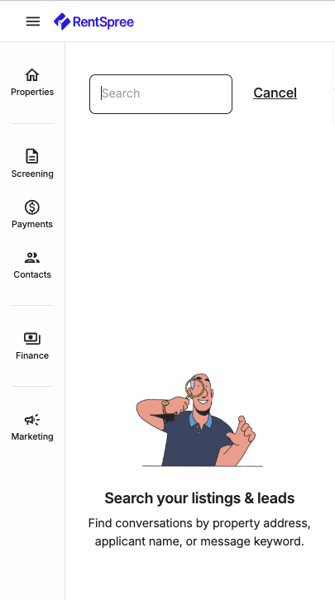
Select the magnifying glass icon at the top of the Messages panel to search by property address, contact name, or a keyword from the conversation.
Choose how you’re notified
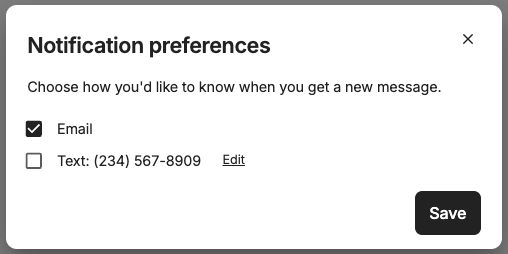
Select the gear icon at the top of Messages. Email notifications are on by default; add your phone number to get text notifications instead or as well. Select Save.
Mute a conversation
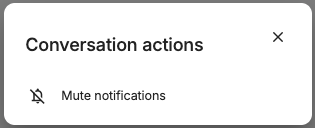
In any open conversation, select the name at the top to open Conversation actions, then select Mute notifications for that thread.
Related articles: