
Most landlord relationships go quiet after lease signing. Not because agents don't care, but because there's no easy way to stay in touch consistently. Nurture changes that. Enroll a client once and they automatically receive a branded property market report every quarter, with your name, photo, and contact info front and center. When they open it, you'll know. When they reply, it lands in your inbox. No new apps, no extra logins. Just a steady presence that earns the next transaction.
Nurture is available directly in RentSpree and through the Nurture widget in your MLS if RentEdge is supported. The enrollment flow is the same either way.
How to Enroll a Client
Step 1: Open Nurture and start enrollment
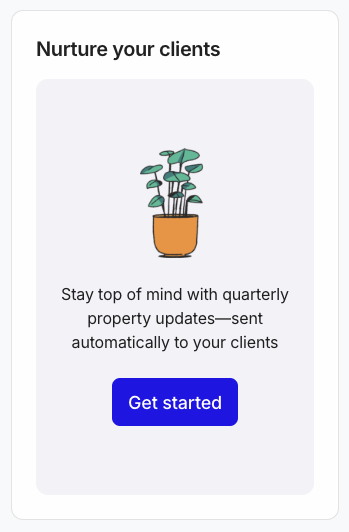
- In RentSpree or your RentEdge MLS widget, go to the Nurture widget.
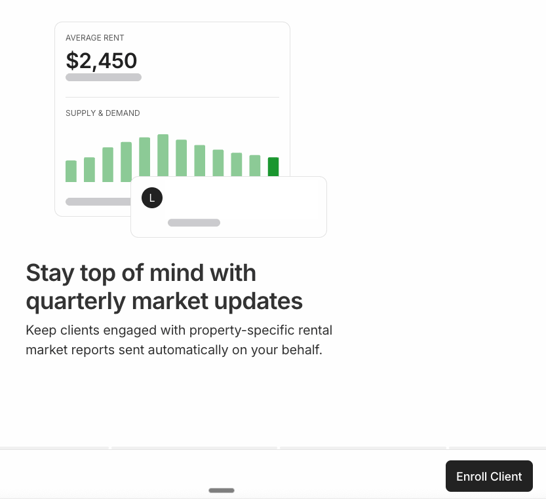
- Click Get started if this is your first time, or Enroll Client on the intro screen that follows.
Step 2: Choose a client to enroll
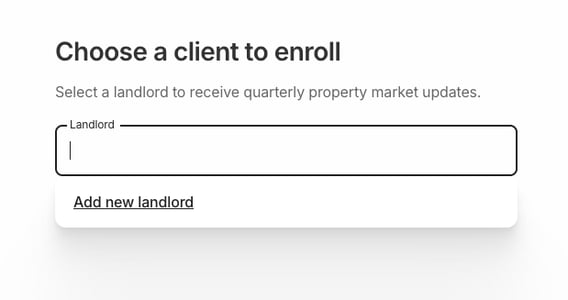
- In the Landlord field, search for an existing contact by name or email.
- If they're not in your contacts yet, select Add new Landlord.
- Enter their first name, last name, and email address. Phone number and birthday are optional. If you add a birthday, you'll receive a reminder so you can reach out on the day.
- Click Next.
Adding a birthday takes five seconds and creates a natural touchpoint between quarterly reports. A quick message from their agent on the right day is the kind of thing landlords remember when it's time to list again.
Step 3: Select the property
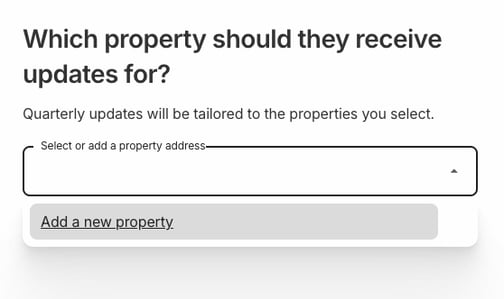
- In the Select or add property address dropdown, choose an existing property or select Add a new property to enter one manually.
- The property address drives the localized market data in the report. The more precise the address, the more relevant the report.
- Click Next.
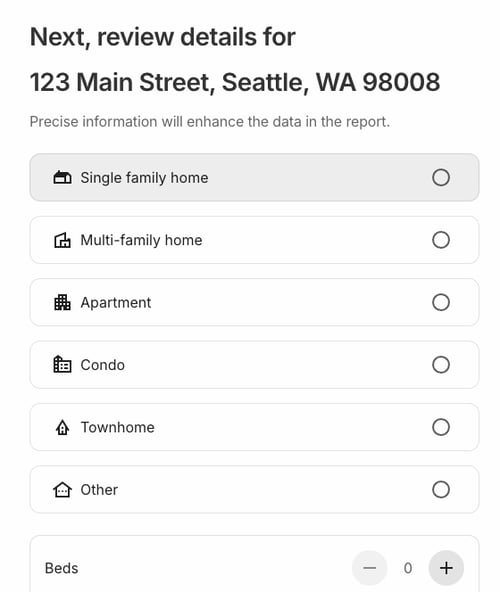
Step 4: Review property details
- Select the property type: single family home, multi-family home, apartment, condo, townhome, or other.
- Set the number of beds using the counter.
- These details calibrate the market comparisons in the report. Click [BOLD]Next[/BOLD] when ready.
A condo and a single family home at the same zip code can show very different rental market data. Selecting the right property type keeps the report accurate and credible for your landlord.
Step 5: Confirm and activate
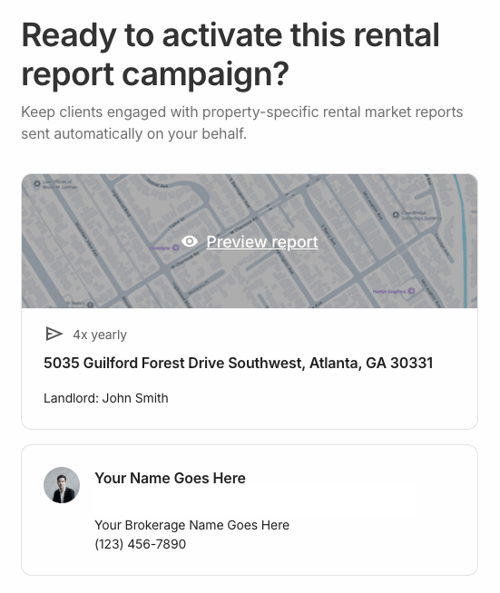
- The final screen shows a summary of the campaign: the property address, the landlord's name, and the send cadence (4x yearly).
- Your agent profile (name, headshot, brokerage, and phone) appears exactly as it will in every report. Confirm the details look right.
- To see the full report before committing, click Preview report. The preview shows the live market data that will go out to your client, including average rent, days on market, and vacancy rate for their area.
- When you're ready, click Activate.
Your profile details are pulled directly from RentSpree. If your headshot, brokerage name, or phone number are out of date, update them in your profile settings before activating — every report will reflect the current version.
What Your Landlords Receive
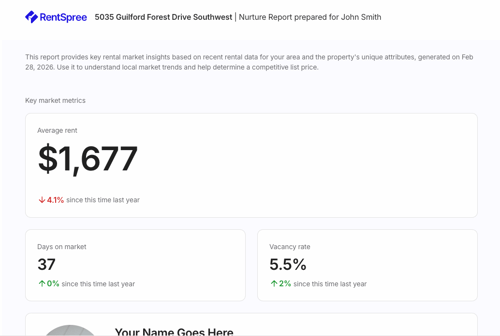
Each report is personalized to the landlord's specific property and includes three key market metrics: average rent, days on market, and vacancy rate — each with year-over-year comparisons for their area, drawn from RentRange data. Your name, photo, brokerage, and contact info appear throughout.
When a landlord opens the report, you get an instant alert. When they reply, the thread lands directly in your inbox. No app, no extra login required.
FAQs
- Do landlords need to create an account to receive the report? No. The report arrives like any other email. No app, no login, no friction on their end.
- Will the report show my name and branding? Yes. Every report leads with your name, headshot, brokerage, and contact info. RentSpree stays in the background.
- What data powers the reports? Reports draw from RentRange rental data and include average rent, days on market, and vacancy rate — all with year-over-year comparisons for the landlord's specific property area.
- When does the first report go out? On the next quarterly send date after you activate: January 1, April 1, July 1, or October 1.
- How many reports will a contact receive? Campaigns automatically stop after 6 sends, keeping the outreach timely and relevant rather than running indefinitely.
- How do I know when a landlord opens my report? You'll receive an instant alert as soon as they open it.
- Where do landlord replies go? Straight to your inbox. Reply from wherever you check email.
- Can I enroll multiple landlords at once? Enrollment is done one client at a time. Each landlord gets their own report personalized to their specific property.
- Can I customize the email content? Report content is auto-generated from market data. Customization options, including a personal note field, are coming in a future update.
- Can I change the send frequency? Quarterly (4x yearly) is the current default. Monthly, semi-annual, and annual options are coming in a future update.
- Can I pause or stop a campaign? Yes. Remove or pause individual contacts from your Nurture dashboard at any time. Other enrolled contacts are not affected.