
The Transactions view in your Finance tab is a ledger for your rental business. Log any income or expense, upload receipts, categorize everything with tax-ready labels, and split costs across properties, all in one place and separate from your personal finances.
Where to find Transactions
In the left sidebar, select Finance, then Transactions.
How to add a transaction
Select Add transaction in the top right.
Fill in the details: a short transaction name, the type (income or expense), the amount, a category, the payment method, who it was received from or paid to, the date, and the property it belongs to. You can also upload one receipt (PDF, JPG, JPEG, or PNG, up to 10MB) and add notes.
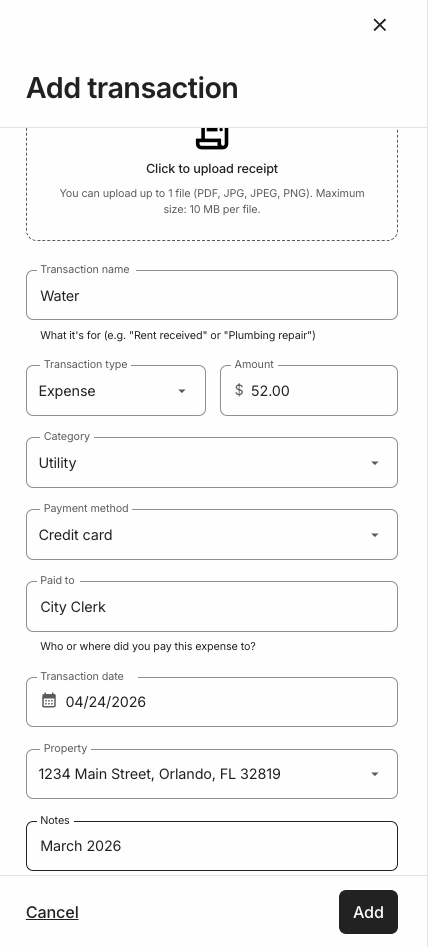
Select Add.
Expense categories are tax-ready and map to common Schedule E lines: advertising, auto and travel, cleaning and maintenance, commission, insurance, legal and professional fees, management fees, mortgage principal and interest, other interest, repairs, supplies, tax, utility, and other. Categorizing correctly from the start means your totals are already sorted when your accountant or tax software asks.
Edit, split, or archive a transaction
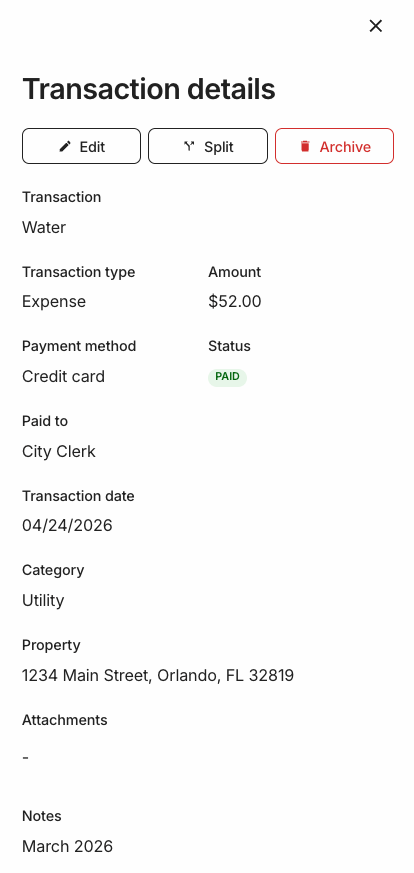
Select any transaction to open its details, or use the three-dot menu on the right:
Edit: update any field.
Split: divide one transaction across categories or properties (handy for a utility bill that covers two units). Set the category, property, and amount for each part, select Add a split for more than two, then select Split.
Archive: move it out of your active view without deleting it. The Archive tab keeps everything you archive; the Active tab shows the rest.
For a visual summary of income and expenses over time, see Performance under Finance. Performance requires Landlord PRO or RentSpree PRO.