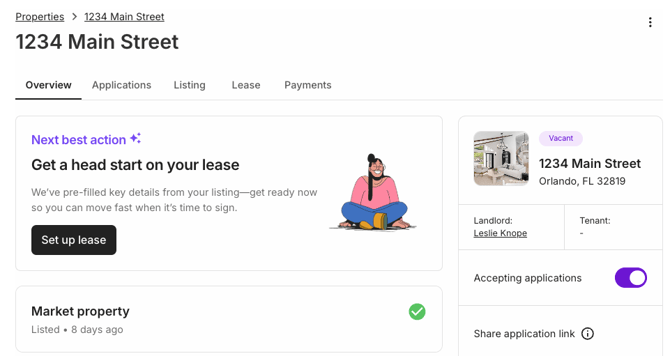
Understanding your Properties dashboard
A quick tour of your property's home base and where everything lives.
Once you've added a property, clicking into it opens your property details, the place where everything related to that specific rental happens. Before you start taking action, it's worth taking a minute to understand how it's laid out so you always know where to go.

The tabs across the top
At the top of every property page you'll see five tabs. Think of these as the five chapters of your rental story — each one covers a different stage of the process:
- Overview — Your starting point. Shows a summary of where things stand and guides you toward your next action.
- Applications — Where you'll see everyone who has applied or been screened for this property.
- Listing — Where you create and manage your rental listing for syndication to sites like Zillow and Redfin.
- Lease — Where you upload and send your lease agreement for e-signature.
- Payments — Where you set up and track rent payments for this property.
Each of these tabs has its own dedicated guide. Links at the bottom of this article will take you to whichever one you need next.
The Overview tab
The Overview tab is your default landing spot whenever you open a property. It's designed to give you a clear picture of where things stand at a glance.
Next best action
At the top of the Overview tab you'll see a Next best action card. This is RentSpree's way of nudging you toward the most logical next step based on where your property is in the rental process. If your property is vacant and you haven't screened anyone yet, it'll suggest starting there. Think of it as a helpful reminder rather than a strict rule as you're always free to jump to any tab you need.
Your action sections
Below the Next best action card, you'll see four sections laid out in order:
- Market property — Create your listing and get it in front of renters.
- Screen tenants — Request applications and run background checks.
- Set up lease — Send your lease for e-signature once you've chosen a tenant.
- Arrange payments — Get recurring rent set up so you get paid on time every month.
These sections reflect the natural flow of renting a property from finding a tenant all the way through to collecting rent. You don't have to follow them in order, but for a first-time landlord, working through them top to bottom is a great way to make sure nothing gets missed.
Your property summary
On the right side of the Overview tab you'll see a small card showing your property status, your name as the landlord, and your current tenant (if one is assigned). When a property is vacant, the tenant field will simply show a dash — that's normal, and it'll update automatically once a tenant is in place.
The three-dot menu
In the top right corner of your property page, you'll see a ⋮ (three-dot) menu. This gives you quick access to additional actions:
- Reset to vacant — Use this when a tenancy ends and you're ready to start fresh with a new tenant.
- Archive property — Remove a property from your active view when you no longer need to manage it in RentSpree.
Moving on from a tenant? When a lease ends, use Reset to vacant rather than deleting the property. This preserves your history — past applications, payments, and documents stay on record — while giving you a clean slate for finding your next tenant.