Skip to content
  • There are no suggestions because the search field is empty.

How to create your RentSpree account

Getting started takes just a few minutes.  Here's how to set up your free account.

Before you can list a property, screen a tenant, or collect rent, you'll need a RentSpree account. The good news is it's free and only takes a few minutes to set up. Let's get you in.

Step 1: Go to RentSpree's website

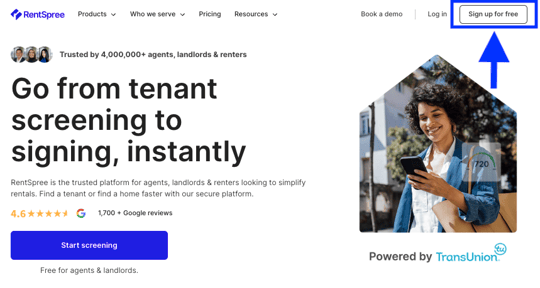
Head to RentSpree.com and click Sign Up For Free in the top right corner.

Sign up for Free

Step 2: Create your account

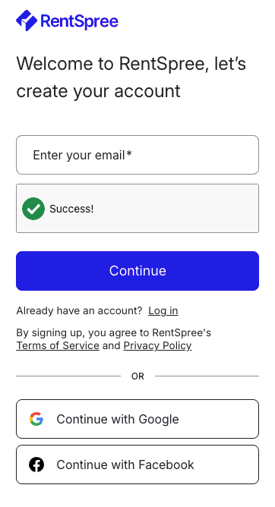
You can sign up using your email address or continue with Google or Facebook for a faster setup. Choose whichever you prefer — both options give you full access to the same features.

If you sign up with email, you'll be asked to create a password. Choose something secure that you'll remember, or let your browser save it for you.

Sign up Menu

Step 3: Verify your email

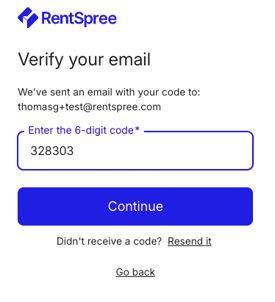
If you signed up with your email address, RentSpree will send you a quick verification email containing a six (6) digit code. Open it and copy the code then return to the RentSpree sign-up page to enter it. If you don't see the email within a few minutes, check your spam or junk folder.

Screenshot 2026-04-16 at 12.40.46 PM

Step 4: Tell RentSpree about yourself

Once you're in, RentSpree will ask a few quick questions to set up your account — things like your role and how you plan to use the platform. Select Landlord when asked.

Screenshot 2026-04-16 at 12.45.01 PM

You're in

Once your account is set up, you'll want to select the Properties menu of your dashboard — your home base in RentSpree. It'll be empty for now, and that's completely normal. Your next step is to add your first property.

A note on your account email: Use an email address you check regularly. RentSpree will send you important notifications here — things like new applications, payment updates, and messages from tenants. Make sure it's one you actually read.

Ready for the next step? Add your first property now: How to add your first property