How to create a screening request
Send a screening request to any applicant in minutes: here's exactly how it works.
Once you have someone interested in your property, the next step is screening them. RentSpree makes it easy to invite applicants directly, customize exactly what you want to review, and get a complete report delivered to you when it's ready. Here's the full process from start to finish.
Step 1: Open the Applications tab on your property
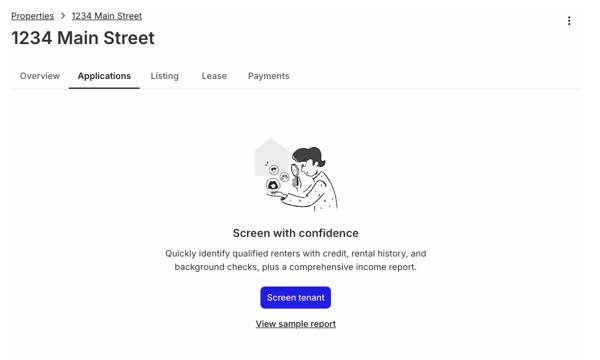
From your Properties menu select the property address for the screening. Then, from the property dashboard, click the Applications tab. If no one has applied yet, you'll see the option to get started. Click Screen tenant to begin.

Step 2: Accept the TransUnion service agreement
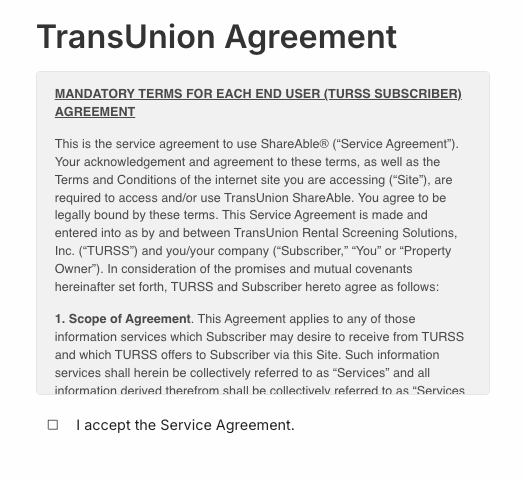
The first time you run a screening, RentSpree will ask you to review and accept the TransUnion ShareAble service agreement. This is a one-time step; you won't see it again once you've accepted. Read through the terms, check the box to confirm your acceptance, and continue.
Screening reports are provided by TransUnion and are subject to laws and regulations that may affect what information can be reported in your state. RentSpree includes a link to TransUnion's criminal background check and screening restrictions — worth reviewing so you understand what to expect in your area.

Step 3: Review your application package components
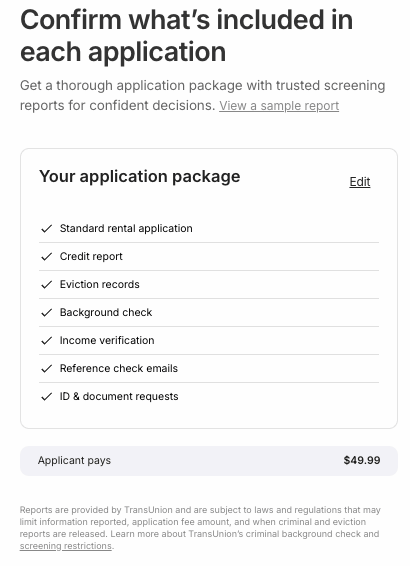
Next, you'll see a summary of everything included in your application package. By default, the full package includes:
- Standard rental application
- TransUnion Credit report
- TransUnion Eviction records
- TransUnion Extended background checks
- Income verification
- Reference check emails
- ID & document requests
The default fee is charged directly to your applicant so you pay nothing. Click Edit if you'd like to customize what's included before sending.

Step 4: Customize your package (optional)
If you click Edit, you can tailor the application package to your needs. Here's how it breaks down:
Application type
Choose between a Standard rental application (which collects employment, income, rental history, and references ) or No application if you only want the screening reports without a full application form.
Tenant screening reports
The core screening package ($39.99) includes:
- TransUnion Credit report
- TransUnion Eviction records
- TransUnion Background checks
Advanced verifications
For an additional $10, you can add extended background checks and enable income verification, reference check emails, and document requests.
Document requests
Click Customize under document requests to choose exactly which documents you'd like applicants to upload. Options include:
- Proof of income
- Bank statement
- Government issued ID
- W-2s
- Tax returns
- Other (with custom instructions)
Each document type has an optional instruction field where you can add context for your applicant. For example, specifying how recent a bank statement should be.
Who pays
By default, the applicant pays the full fee. If you prefer to cover the cost yourself, select I pay before saving.
Stick with the default package. The full package — credit, background, eviction, income verification, and documents — gives you the most complete picture of any applicant. Unless you have a specific reason to reduce it, the extra information is almost always worth having before making a decision that will affect your property for a year or more.

Step 5: Confirm the background check
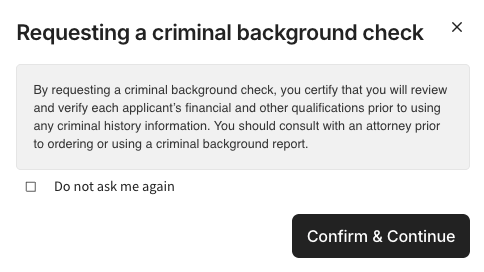
If your package includes a TransUnion criminal background check, RentSpree will show you a one-time confirmation before proceeding. By continuing, you're certifying that you'll review each applicant's full financial and other qualifications before using any criminal history information in your decision.
Consult a legal representative if you're unsure. Fair housing laws — both federal and local — govern how criminal history can and cannot be used in rental decisions. RentSpree recommends speaking with an attorney before ordering or acting on background check information. Check "Do not ask me again" only once you're comfortable with this responsibility.

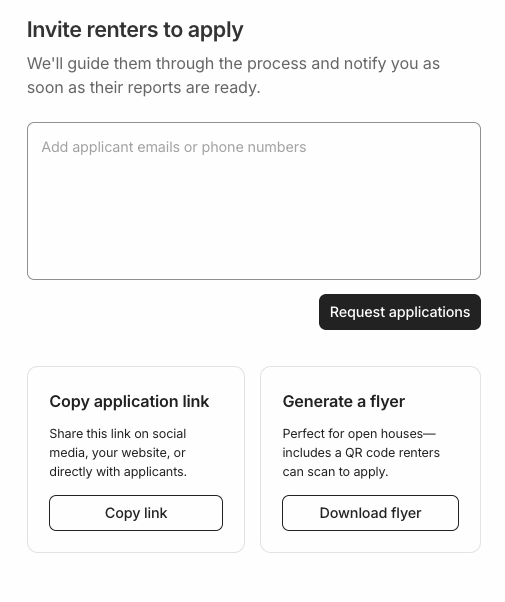
Step 6: Invite your applicants
The final step is getting the screening request to your applicants. RentSpree gives you three ways to do this:
- Send directly through RentSpree— Enter your applicants' email addresses or mobile phone numbers in the text field and click Request applications. RentSpree will guide them through the process and notify you as soon as their reports are ready.
- Copy application link — Get a shareable link you can send via text, email, social media, or your website. Useful when you want to share the same link with multiple people.
- Generate a flyer — Download a flyer with a QR code that applicants can scan to apply on the spot. Perfect for open houses or posting at the property.
The flyer is underrated. If you're holding an open house or showing the property to multiple people in one day, having a printed flyer with a QR code means interested applicants can start their application before they even leave. It's a small touch that makes you look organized and serious, which often attracts the same kind of tenant.

What happens next
Once your applicant submits their application and the screening is processed, you'll be notified that their report is ready. You can review it from the Applications tab on your property. Reports are typically available within minutes of the applicant completing their submission.
Tracking your applicants
Once requests are sent, you can track everyone's status from the Applications tab. Each applicant appears in the list along with their current status — so you always know where things stand at a glance.
A heads up on how applicants appear: If you sent the request directly through RentSpree by email, the applicant will show up in your list right away with a status of Not started until they start their application. However, if you shared an application link, sent a text message, or distributed a flyer with a QR code, the applicant won't appear in your list until they actually begin their application.

Stopping applications
If you've found the right tenant and want to stop accepting new applications, use the Accepting applications toggle in the top right of the Applications tab. Turning this off prevents new applicants from submitting — useful once you're ready to move forward and don't want to leave your link active.