
The Finance section of your dashboard tracks every dollar across your rentals: payments collected through RentSpree log themselves, you can add outside transactions manually, and Performance and Reports turn it all into insights.
How payments are logged
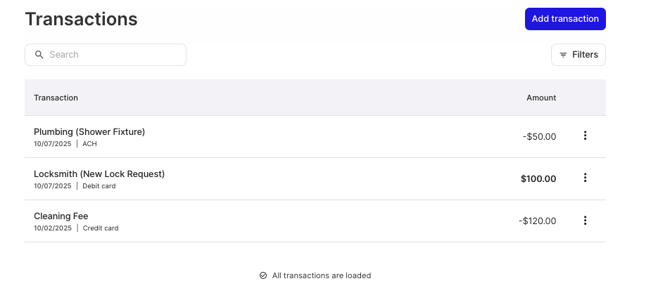
Every payment collected through RentSpree is logged automatically under Finance > Transactions for its rental unit. Anything outside RentSpree (a repair bill, a check payment) can be added manually: Understanding your transactions covers adding, editing, and splitting them.
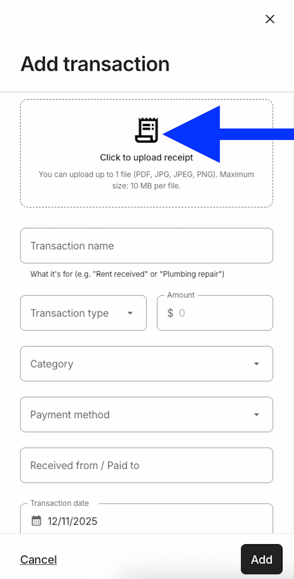
You can also upload a receipt when adding a transaction: the details populate automatically within a few moments, so you just review, name the transaction, and select Add Transaction.
Monitor rental performance
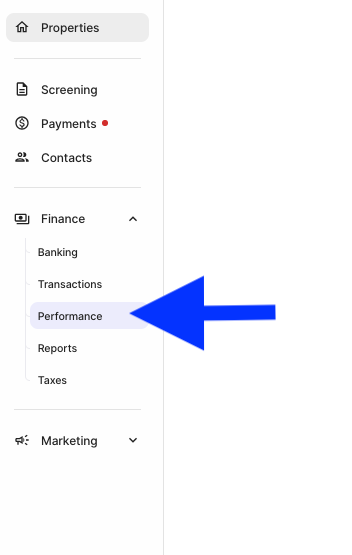
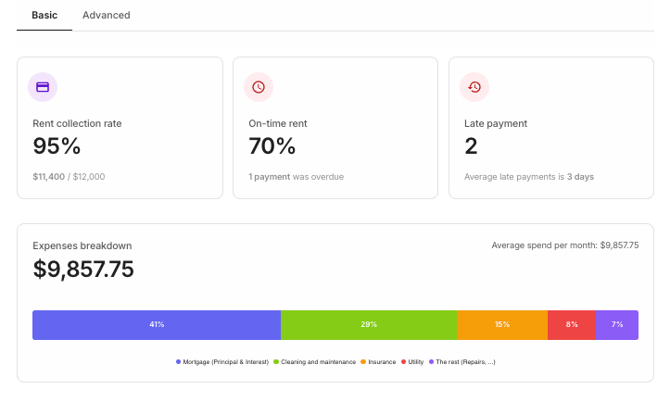
Select Performance under Finance. Choose a date range and property to see your rent collection rate, on-time rent percentage, late payments, and an expense breakdown by category.
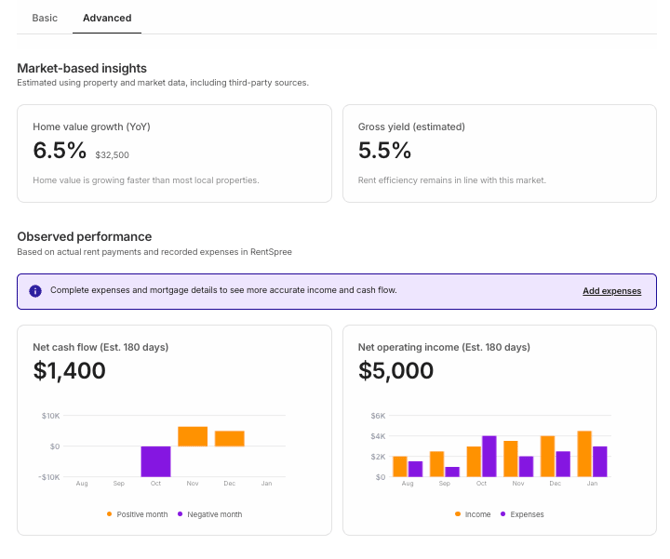
With Landlord PRO or RentSpree PRO, the Advanced tab adds market-based insights (value growth and gross yield) and observed performance (net cash flow and net operating income).
RentSpree’s home value estimate is informational only, drawing on data from various sources. It isn’t an appraisal, and the actual sale price may vary significantly.
View financial reports
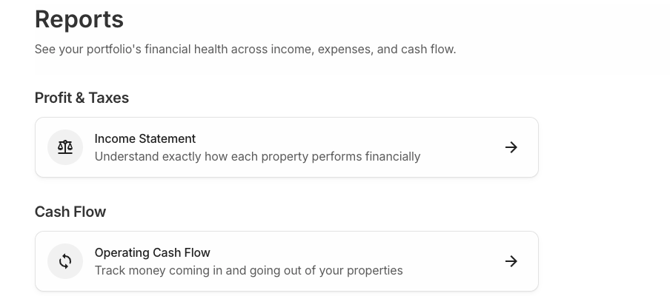
Select Finance in the left sidebar, then Reports (Landlord PRO or RentSpree PRO). Two reports are available: the Income Statement, a summary of rental income versus operating expenses with a net income total, and Operating Cash Flow, cash in and out across your properties. Filter by property, period, and year, and select Download CSV to export.
These reports are informational and not intended for tax filing. We recommend consulting a tax professional before using them for tax purposes.